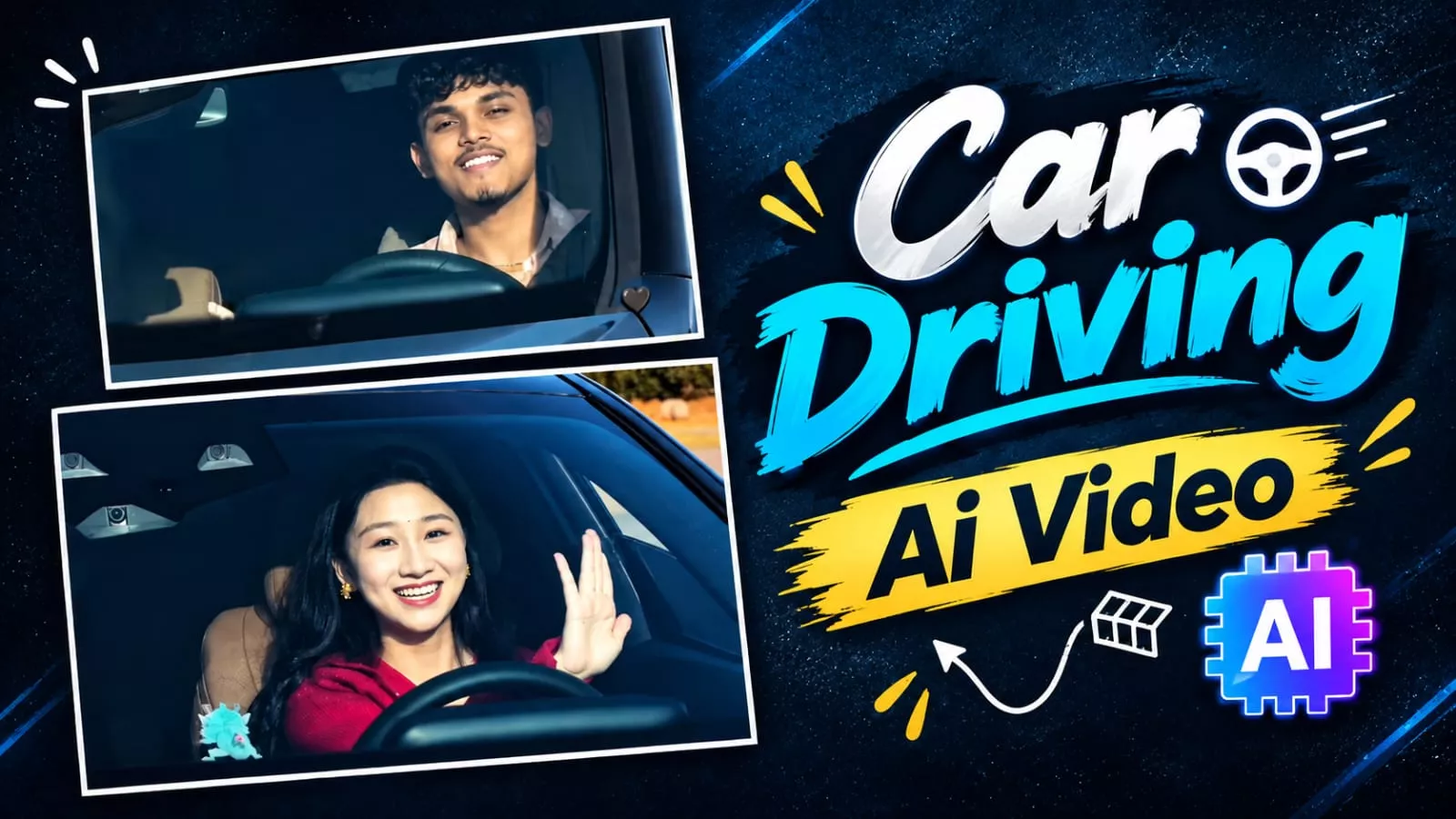
Car Driving Ai Video Editing Prompt – You may have noticed that videos featuring AI-driven cars are going viral. People are creating this type of edited content and gaining significant traction. I will walk you through all the steps involved. If you want to go viral these days, you can create such a video by following these simple steps. However, you need to execute the process correctly to achieve the best results. In this article, I will explain how you can create a perfect AI video using a free method by following this specific approach.
Details Of Car Driving Ai Video Editing Prompt
What do you see in this edit? It is quite simple: you see a Mercedes being driven, accompanied by music. The video features slow-motion shots that are perfectly synchronized with the audio. People love this kind of content because it feels polished and well-crafted. We will learn how to create videos like this. I will show you two methods to achieve a perfect result; one will yield a flawless outcome, and the other allows you to create a video that is virtually identical to the original. Essentially, you can try out these similar styles and choose the one that works best for you.
Methods Of Creating Car Video?
Look, let me explain two methods here. The first method involves face swapping. This means we’ll simply have a video. We’ll upload it, provide our photo as a reference, and then add our own. The second method involves generating the video. Using a photo as a reference, we’ll generate it. Let me explain both. First, I’ll explain the generation method. Then, I’ll explain the swap method.
Task: 1:1 in-place subject replacement.Background & Camera Lock: The reference video is the master plate. Do not change, invent, or drift any camera angles, paths, timing, transitions, speed ramping, or car details. Every frame outside the driver must remain identical to the original video.Action & Choreography Lock: The driver's body posture, steering gestures, head rotation, eye direction, and expressions must track the video's original driver 1:1 frame-by-frame.Identity & Outfit Transfer: Replace the driver entirely with the person in the uploaded image. Accurately replicate their exact face, facial features, hair, skin texture, and their exact outfit and clothing visible in the reference image.Integration: Seamless real-camera optical compositing with matching cabin lighting and windshield reflections.
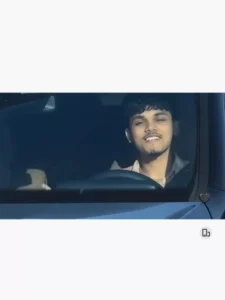
"A continuous, single-take photorealistic cinematic video with NO frame cuts. A young man is actively driving a moving black Mercedes-Benz, viewed from a fixed front-facing camera angle mounted on the hood, looking directly at him through the windshield. He is wearing a light pink plaid shirt, steering with one hand. He looks directly at the camera with a relaxed, happy smile and raises his hand forward to wave directly at the front lens. Bright sunny daytime lighting with realistic reflections on the glass and the outside background environment passing by to indicate driving speed. Smooth continuous motion, 4k resolution, 60fps, 16:9 aspect ratio, ultra-realistic driving."
How To Generate Car Ai Video?
Search for the AI tool on Google, open the first website, and sign up; alternatively, I have provided a direct link here that you can click to visit the site. Once there, start by going to “New Project.” Click the “plus” icon at the top to upload your video and photo. Next, click the “plus” icon at the bottom to select both of them. Then, take the specific text/prompt I’ve provided in the article and paste it into the input field. Look for the section labeled “reference uploaded image,” type “@” followed by the image selection, and hit “Generate”—this will create a perfect video for you.
Second Method Of Generating Video
The second method involves creating a video directly; you can do this using either Google’s tool or Flaw—it works exactly the same way on both. First, go to ‘New Project’ in Flaw, click the plus icon, and upload your reference photo. Next, select the photo by clicking the plus option at the bottom. Then, paste the prompt—this is the second prompt option that allows for direct video generation. Adjust the settings to your liking and hit generate; it will create a viral-ready video for you. Finally, to complete the process, import the video into CapCut, add music, and synchronize it to achieve the perfect result.
Thank you for reading this post! Don’t forget to check out our other posts for more trending editing ideas, templates, and tutorials.