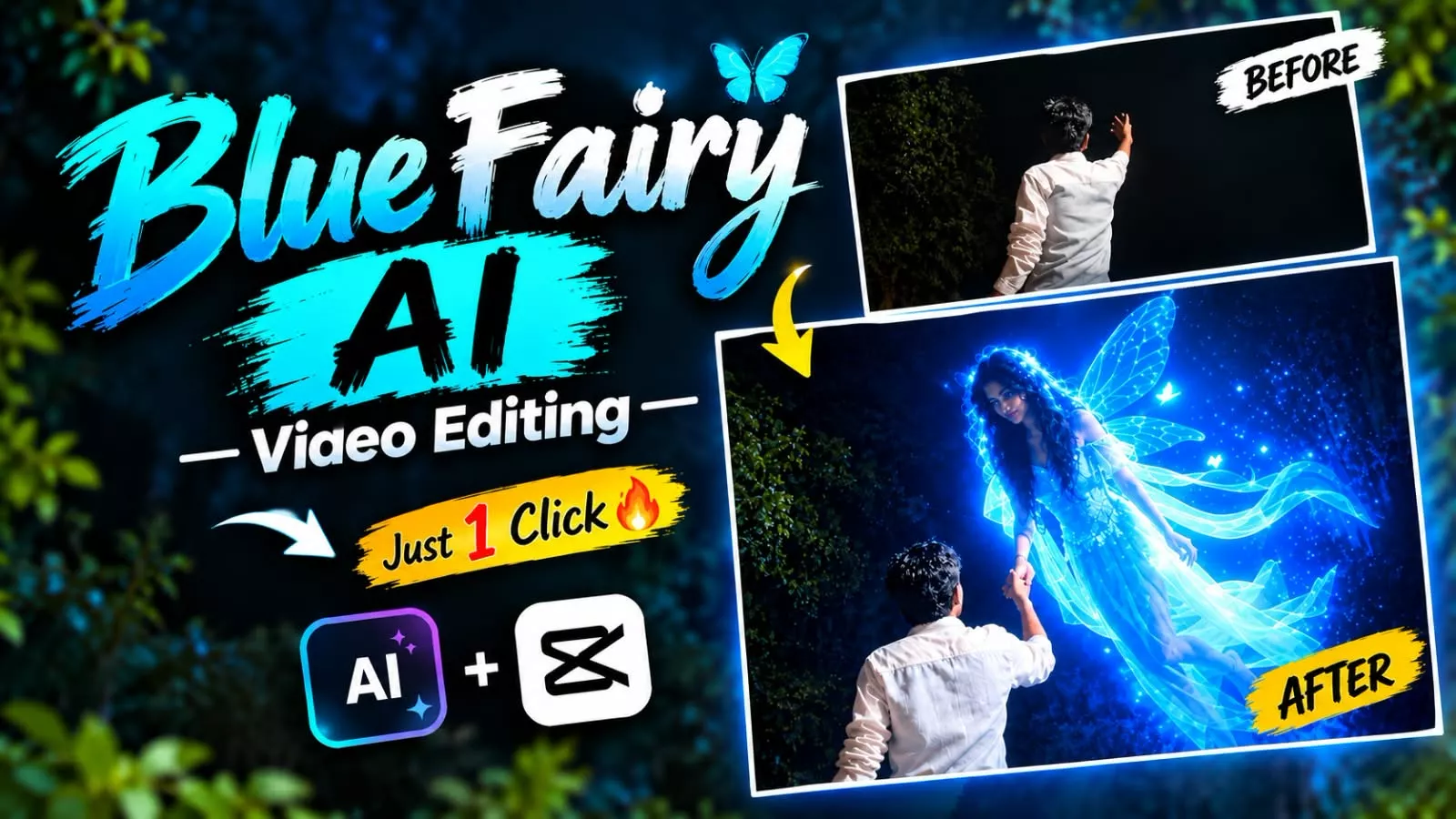
Blue Fairy Ai Video Editing Prompt – You must have seen it on social media too. The butterfly trend is becoming quite viral in which you can see eye girls. A butterfly editing is seen and in today’s time you can create it easily. If you understand a proper step and I will tell you in this article how you can create it properly. If you want a better result and good editing then you should follow this article properly and in it you will get all the details about how to record the video in it. How to make the photo. How to make the video. Everything will be explained. You just have to read.
Details Of Blue Fairy Ai Video Editing Prompt
This style is very popular on social media, and people are creating these edits with great ease. That is why I am sharing this with you—so you can create them easily too. The scene typically features a nighttime setting where a boy raises his hand; a blue fairy then flies in, takes his hand, and flutters her wings while small blue butterflies fly around. It looks incredibly aesthetic and unique. Another popular variation involves a girl running towards the camera, which also looks amazing. Many people want to create these kinds of edits but simply haven’t been shown the proper method; this article will teach you how to do it and help you achieve excellent results.
Methods Of This Video Editing
We are dividing this video into four parts. First, we will record a video. Second, we will generate photos. Third, we will generate a video, and finally, we will do the editing.
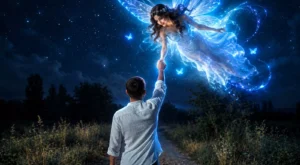
Image Prompt –
Prompt - A cinematic nighttime scene of a young man seen from behind with his right hand raised high. A beautiful, brightly glowing fairy-like girl surrounded by a radiant blue magical aura is hovering in the air right above his hand. She is flying down to gently hold his raised hand while looking directly at him. Magical realism, fantasy elements, high quality and highly detailed."
Video Prompt-
Use the uploaded image as the exact reference frame. Keep the boy, face direction, pose, white shirt, hand position, background trees, night atmosphere, lighting, colors, composition, and camera angle completely unchanged. No background change, no dress change, no face change, no color grading change, no extra objects, no watermark.

Action: A beautiful glowing blue fairy-like girl appears from a short distance directly in front of the boy, floating slowly toward him in a straight line. She is looking only at the boy. She gently flies closer, extends her hand, and places her hand into the boy's already raised hand exactly as shown. The boy slowly pulls her toward himself using their joined hands. The fairy moves naturally toward him and softly lands on the ground directly in front of him while maintaining eye contact with him. Her movement is smooth, magical, romantic, and realistic. Blue particles and soft glowing light trail around her body.**
First Step Of Creating Video?
For the first step, you need to record a video in landscape mode. Start by recording from behind, then move your hand—specifically your right hand—up towards the sky. Also, make sure to record this at night; doing so will yield excellent results, ensuring the ‘blue light’ effect turns out perfectly.
Second Step Of Creating Video?
In the second part, you need to go to the last frame of the video where you’re raising your hand and take a screenshot. Okay, and then upload it to Chat Secret. I’ll give you a problem here. If you paste it there and generate it, it will add the blue fairy to your photo. From there, follow the next steps.
How To Generate Video
In the third step, you need to convert that photo into a video; for this, visit the Google Flow website. There, start a new project, click the plus (+) icon, and upload the generated photo. Next, paste the video prompt—you can find the prompt in this article. Once you paste it and hit generate, it will create an excellent video for you.
Final Editing –
For final editing, all you need to do is add your video to any editing application, add your starting video, which is your original video, then add your second video. From there, simply add a transition, and your perfect video will be ready.
Thank you for reading this post! Don’t forget to check out our other posts for more trending editing ideas, templates, and tutorials.