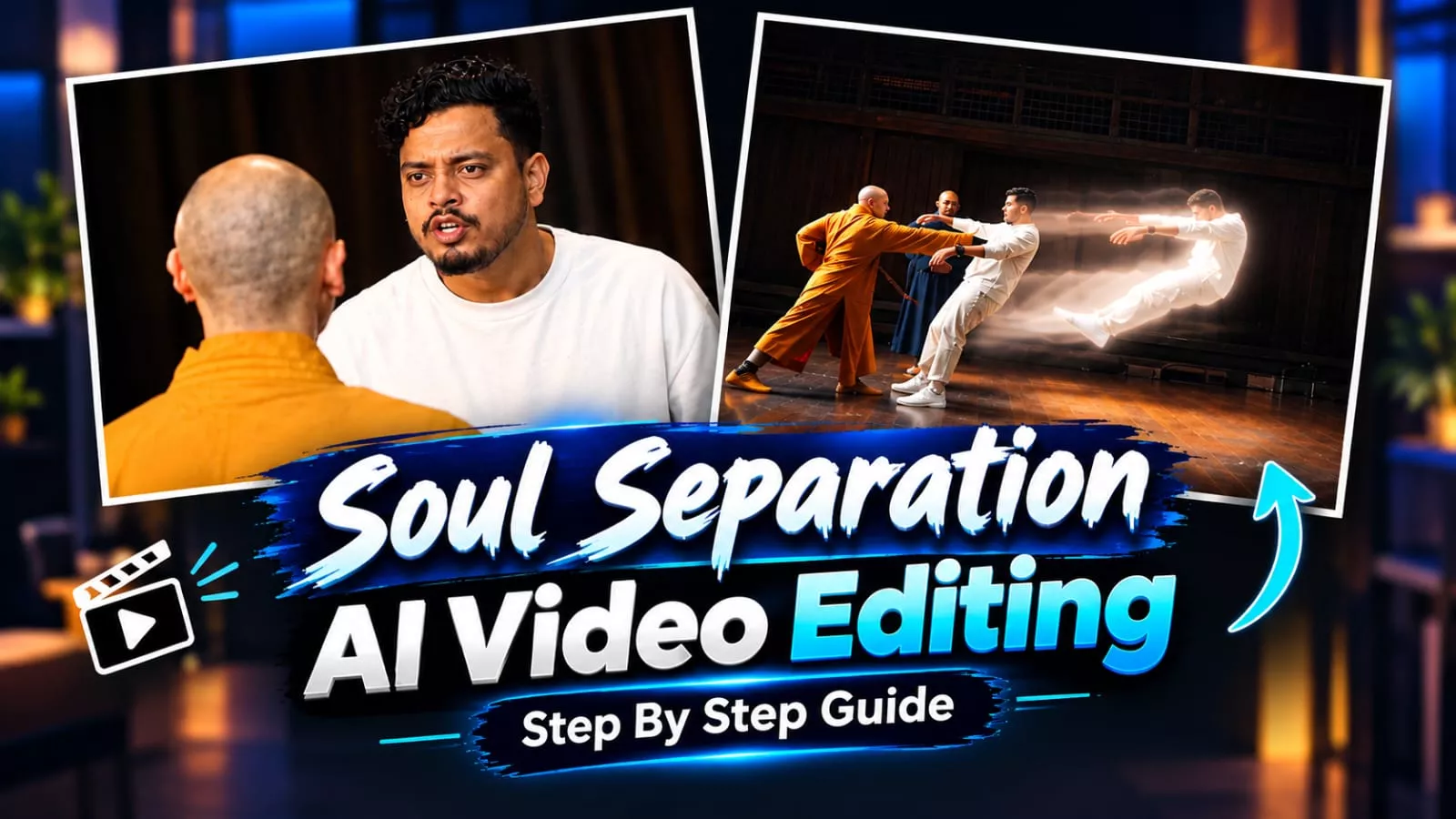
Soul Separation Ai Video Editing – You have likely seen videos featuring a cinematic movie-style look going viral on social media; in this article, I will explain the process in detail. You can also find a tutorial for this on our YouTube channel, ‘Tarun Editz,’ and learn from there. Here, I will guide you on how to create these viral videos with flawless results and perfect editing. Just follow the steps correctly, and you will achieve excellent results.
What you need to do?
First of all, here is what you need to do. You will need a reference photo, and we will create this using a two-step process: first, we will generate the photo, and then we will convert it into a video. It is important to understand this upfront because if you try to create the video directly, you won’t get perfect results; therefore, following these specific steps is crucial.
How To Create The Image?
First, open ChatGPT and copy the image prompt provided in the article. Generate the image based on that prompt and save it. Then, upload both that generated image and your own photo. Paste the prompt and hit generate; this will replace the character in the image—specifically, it will swap the original character’s face with yours. Save the resulting photo, as the next step will be to convert it into a video.

“First photo ko base rakho aur second photo wale person ka face first photo ke adult male par replace karo. Face identity, facial features, skin tone aur hairstyle second photo jaisa exact rakho. First photo ki pose, body, clothes, background, lighting aur composition same rakho. Result photorealistic aur natural ho.”
Video Prompt –
Video Prompt - Character swap: replace the adult male character with my provided avatar. Ensure the new character maintains exact facial identity, skin tone, and features from the avatar reference. The avatar must perform the exact same body movements, walking, and expressions as the original, matching the performance frame-by-frame. Dress the avatar in a simple white sweatshirt and pants. Preserve everything else from the original video: the same lady character, background, lighting, VFX, and camera movement. The replacement must be photorealistic and naturally integrated into the scene. Keep the original audio track and dialogue exactly as they are. Maintain 9:16 aspect ratio.
How To Generate Video?
You have been provided with a video prompt and a video to create your own. First, copy the prompt. Then, open Flow AI—you can do this by clicking the link here. Sign up, then go to “New Project.” Click the plus (+) icon at the top to upload the video and the photo. Next, click the lower plus (+) icon; select the video first, then select the photo. After that, paste the video prompt. Once you hit “Generate,” it will replace the original video and create a viral-style video featuring your face.
Final Editing
For final editing, add it to CapCut. Add your strongest audio there, then add slow motion to it, and you’ll get a perfect result. You’ll love it 100%, because we’ve tried it ourselves, and that’s why we’re sharing it with you. You can find a tutorial on our YouTube channel. You can also watch and learn from it there.
Thank you for reading this post! Don’t forget to check out our other posts for more trending editing ideas, templates, and tutorials.