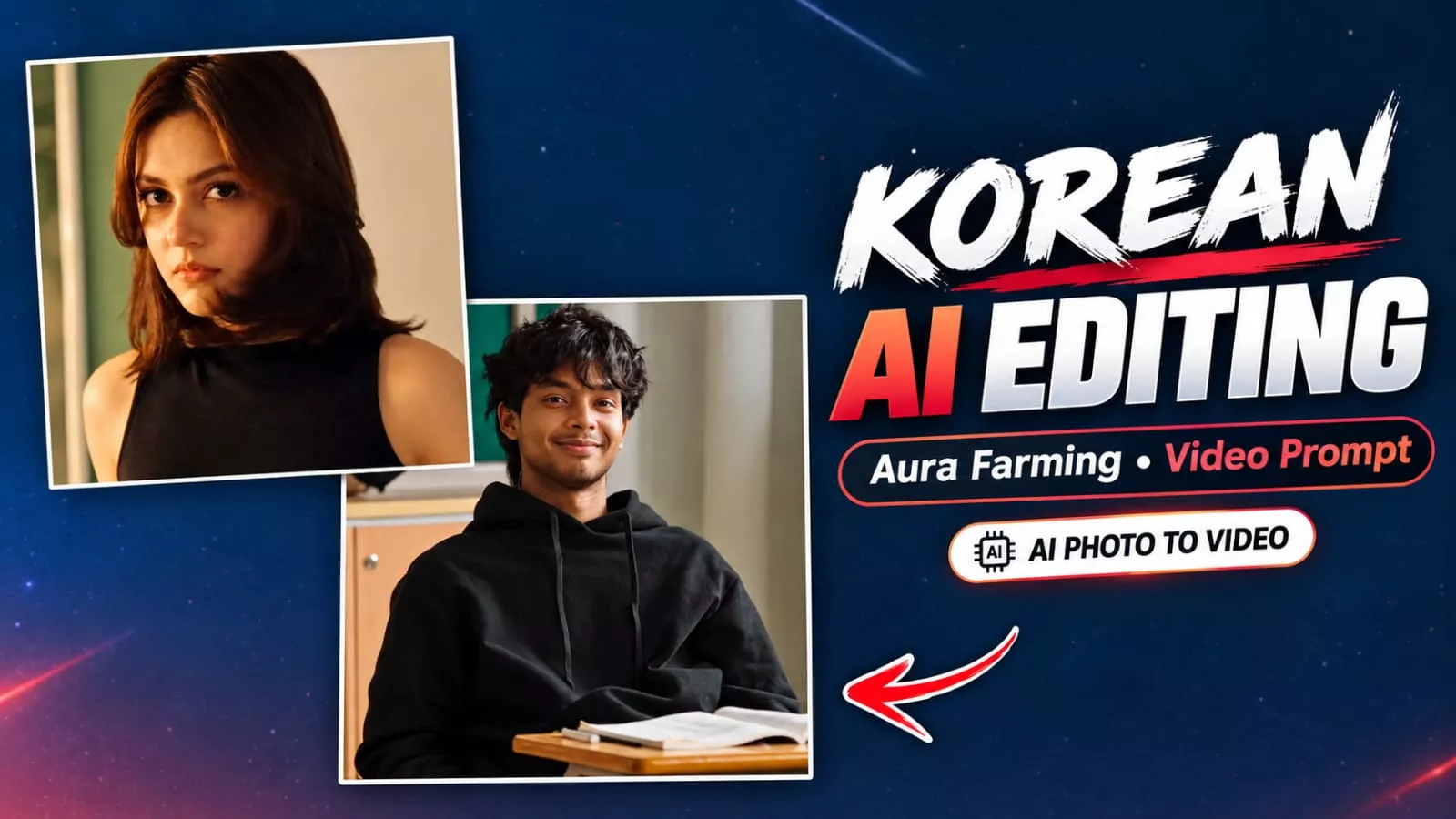
Aura Farming Korean Ai Video Editing Prompt – You may have noticed that the “Korean drama style” of editing is becoming incredibly popular on social media. This style mimics the look and feel of actual movie scenes, and videos created this way are going viral. If you want to create such a viral video, you can follow the steps in this article to produce a perfect result—one that has a high chance of going viral. Simply follow the steps I outline, and you will achieve excellent results.
Methods Of Creating This Ai Video
The editing style you see here is created using two different methods, and I will explain the process for both. You will get a clear idea once you watch the video. Since I cannot fully demonstrate the visual details here, I will outline what the editing entails, how to create it, and which tools are required. First, understand that we will use a reference video, and you will also need a photo—specifically, photos of different characters that you will need to utilize. After that, you will need to use specific tools, such as Google Flow and Google Gemini; using these will ensure your editing turns out perfectly.
How To Generate Video In Gemini?
Let’s first understand the method used by Google Gemini to create these videos and what steps to follow. You will be provided with a prompt—or perhaps two or three different ones, depending on the video—since Google Gemini generates 10-second clips; consequently, the prompt will cover that 10-second duration. Here is what you should do: copy the first prompt and save the reference video provided to you. Then, open Google Gemini. Select the video model first—click the plus (+) option to choose the video model—then select the necessary photos, and finally, hit generate. This will create a perfect video for you.
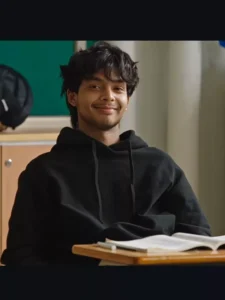
Use the uploaded reference video as the exact motion reference. Track the main subject’s full-body movement, posture, head movement, shoulder movement, hand/arm gestures, walking direction, weight shifts, and facial reactions frame-by-frame.Preserve the original body-motion timing and choreography as closely as possible. The generated subject should follow the same poses, transitions, head turns, body orientation, gestures, and natural pauses as the reference video.Keep human anatomy realistic and stable throughout the entire clip. Maintain consistent face, hairstyle, clothing, body proportions, and identity. No unnatural limb movement, no extra fingers or limbs, no body warping, no sudden pose changes.Match the original camera movement, framing, perspective, shot transitions, and pacing. Keep the motion smooth, cinematic, realistic, and physically believable. Use subtle natural secondary motion in the hair and clothing while maintaining accurate body-motion tracking.IMPORTANT: Prioritize accurate motion transfer from the reference video over creating new choreography. Do not change the timing or direction of the subject’s movements.
How To Generate Video Flow?
You need to follow a specific process to create this using Google Flow. If you aren’t already familiar with it, let me explain. First, you will need your reference video and prompt; there are various options available, so select the reference video you want to use. Next, go to the Google website and start a new project. Click the plus (+) icon to upload your reference video. Then, click the plus icon again to select your photos. Finally, paste the prompt and hit generate. It will create the viral video for you—that’s how you can make it.
Conclison
I hope you understand the editing process. If you don’t, that’s fine. You can better understand it by watching the tutorial on our YouTube channel. It’s fully explained. It also explains the website method: go here, copy from here, and then do it from here. It’s thoroughly explained. You can search for Tarun Edit. You’ll find it there.
Thank you for reading this post! Don’t forget to check out our other posts for more trending editing ideas, templates, and tutorials.