Flow Ai Secret Codes – You might have noticed this type of editing going viral on social media lately—people are gaining popularity by creating these kinds of videos. Let me tell you, creating this style of edit isn’t difficult at all; you can easily do it by following a few simple steps. If you follow the right method, you too can create these viral-style videos. I will provide full details on the process, including how to use an AI tool to create various types of videos. We will cover everything in detail and walk you through the steps so that you achieve excellent results without facing any issues.
Details Of Flow Ai Secret Codes
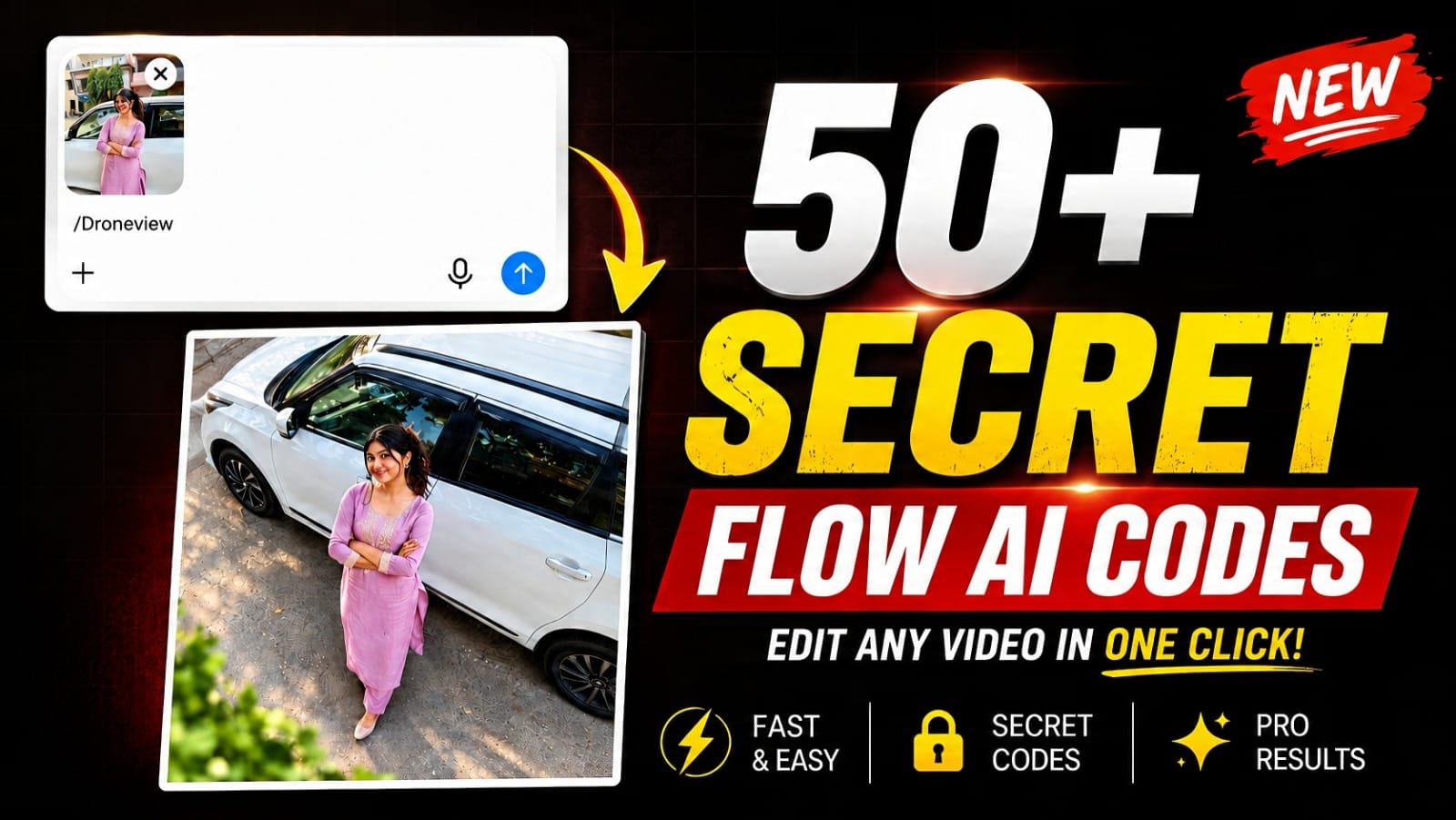
Let’s look at how the editing works and see what happens. Usually, when generating a video featuring an actor, you have to write a detailed prompt and describe every aspect thoroughly. However, with the method I’m about to share, you simply add a forward slash followed by your text, and the video will instantly convert to that specific style. We’ll discuss in detail how to create videos that yield excellent results using this technique. You can follow these steps to achieve great outcomes; I’ll guide you through the process step-by-step so you can get started.
To create this kind of edit, we will use Flow AI.
It generates videos, and right now, it is the best tool available for video generation. Creating videos with it is easy; here is what you need to do. First, search for it on Google (I will provide the direct link). Go there, sign up, and then look for the “New Project” option. Click on it and check the settings; you will find a “Frame to Video” option—change that to “Image to Video.” Next, click the plus (+) icon at the top to add a photo from your gallery. Then, simply type “drone view” and send it; your photo will be converted into a video—specifically, a drone-style shot. I have provided several such prompts for you so that you can simply copy and use them.
Commands–
/zoom
/zoomout
/zoomin
/dolly
/dollyin
/dollyout
/orbit
/orbit360
/pan
/tilt
/truck
/pedestal
/crane
/drone
/dronefly
/droneorbit
/aerial
/fpv
/fpvdrone
/tracking
/follow
/handheld
/steadicam
/slowmo
/timelapse
/hyperlapse
/speedramp
/motionblur
/shakycam
/pov
/firstperson
/thirdperson
/closeup
/wide
/macro
/rackfocus
/focuspull
/whip
/whip-pan
/spin
/rotation
/bullet-time
/freeze
/loop
/reverse
/morph
/transition
/glitch
/cinematic
/epicshot
Here is something you need to understand:
As a beginner, this is the biggest mistake you make. When you start editing, the issue arises with the photo you choose. Often, you upload a “half-shot” or passport-style photo, but that simply won’t work here. Instead, you should always use a reference photo that shows your full body—a “full view” shot. Using such a photo yields excellent results; you won’t face any editing issues, and your edit is more likely to go viral. This is a unique step, which is why I wanted to share it with you.
Conclusion
We hope the code we shared with you has been useful. You’ve probably done some excellent editing with it, creating videos with impressive results. If you’ve successfully edited videos or created photos, let us know. We’ll continue to bring you more viral editing tips and tricks in different steps, so you can create and go viral.
Thank you for reading this post! Don’t forget to check out our other posts for more trending editing ideas, templates, and tutorials.