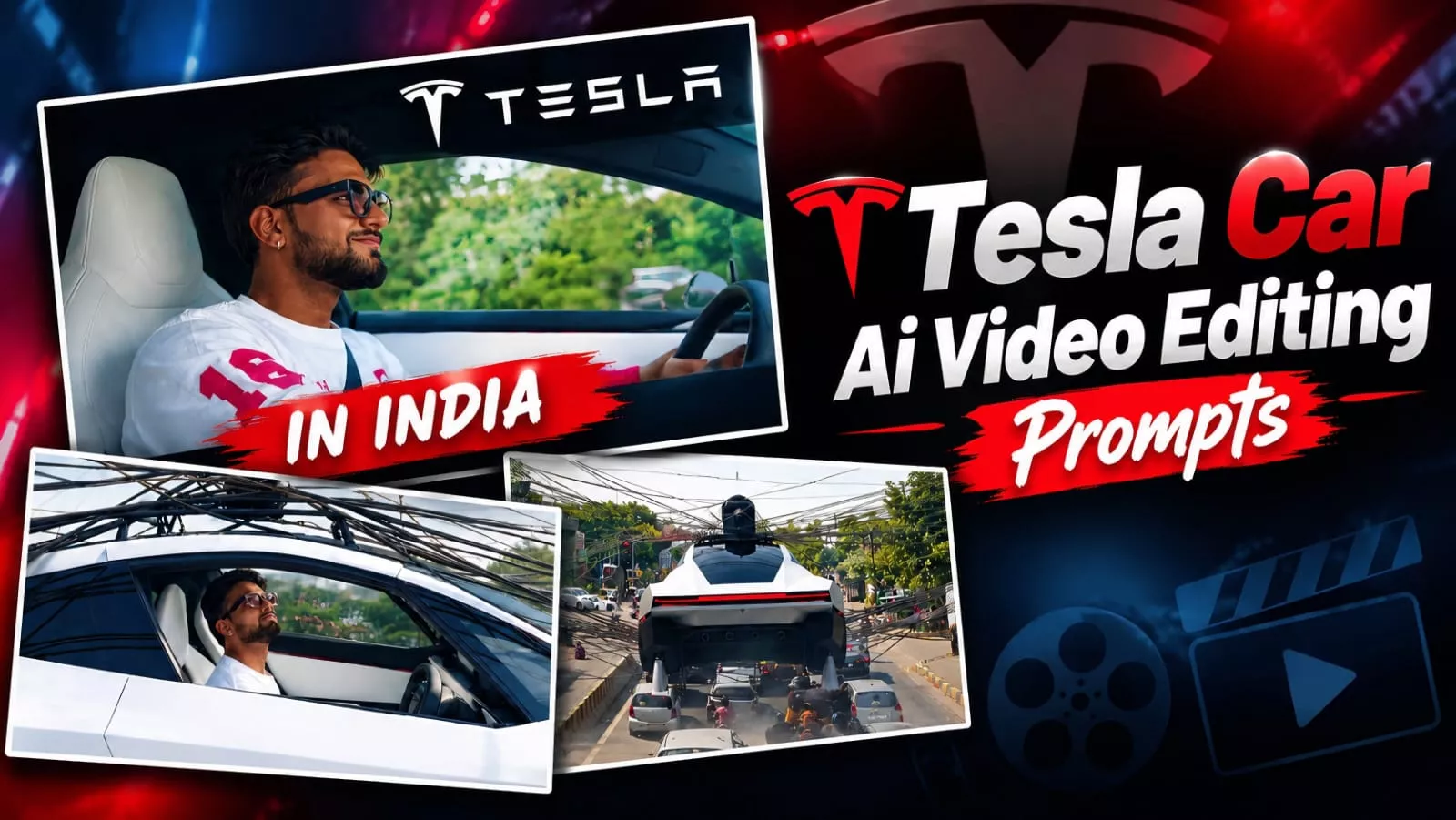
Tesla Car Ai Video Editing – You’ve also seen how the Tesla car video is going viral on social media. Many people are making different types of videos in it, demonstrating how a Tesla car would work in India. You’ll notice that in one such video, the boy in the video demonstrates the concept. Now, the thing is that people want to create similar videos. They want their video to be ready with the face of the boy sitting in the car, so you can definitely do that. If you want to create it in this article, and want to learn how to create it with this article, then you’ve come to the right place, because I’ll explain exactly how you can make this video.
Details of Tesla Car Ai Video Editing
Let’s understand the type of editing that’s done. It shows you driving, then there’s a special feature, like the airborne option, where you get a booster jet. You can use this option to launch your car into the air. This is possible in the video, so what happens is that you fly it in the air. You’ll see that in India, there are a lot of traffic wires, and what happens there. Your car gets stuck in the wire, and this is shown again. Then, he suddenly gets startled, and then his face is visible. This face is supposed to be you, and this is what people are going crazy about right now.
Process Of Creating The Video
To create this edit, we’ll use two possible methods that make our editing easier. First, we have Google Gemini. Second, we have Google Flow, and we’ll learn how to create them correctly using both. If you want to, you can do it too. If you’re using the correct methods, I’ll provide a step-by-step guide. All you need to do is follow them and create.

Recreate @video1 as closely as possible, replacing the original person with the person from @image1.

DURATION: 10 seconds.
ASPECT RATIO: Vertical 9:16.

IDENTITY:
Use @image1 as the ONLY identity reference for the main person. Preserve the uploaded person's recognizable facial features, skin tone, hairstyle, and identity. Do not copy the original person's face from @video1. Keep the same person's identity consistent throughout every shot.

REFERENCE VIDEO:
Use @video1 as the master reference for the complete video. Recreate the same white Tesla Cybertruck, driving scenes, drifting actions, Indian roads, surrounding traffic, buildings, environment, lighting, camera angles, framing, shot sequence, transitions, and movement as closely as possible.

ACTION AND TIMING:
Follow the original sequence of events in @video1. Match the timing, vehicle movements, driving direction, drifting motion, camera movement, and transitions. Do not invent additional scenes or change the original sequence.

VEHICLE:
Keep the white Tesla Cybertruck consistent with the reference video. Preserve its recognizable design, shape, proportions, and color throughout all shots.

REALISM:
Create realistic vehicle motion, natural road contact, believable drifting physics, consistent shadows, and cinematic lighting. Keep the main person's face recognizable and consistent. Avoid facial distortion, identity changes, flickering, and unnatural movements.

AUDIO:
Preserve the original background music and its timing from @video1 if supported. Do not add dialogue, voice-over, or unrelated sound effects.

STRICT RULES:
- No text anywhere in the video.
- No titles, captions, subtitles, labels, or added lettering.
- No added logos, watermarks, or graphic overlays.
- Do not change the car, environment, or original scene sequence.
- Do not add extra people or unrelated objects.
- Do not alter the uploaded person's identity.
- Do not create new scenes that are absent from @video1.

FINAL RESULT:
A realistic 10-second vertical recreation of @video1 featuring the person from @image1, with the original scene sequence, white Tesla Cybertruck, driving and drifting actions, camera movements, and music preserved as closely as the tool allows.
How To Generate With Gemini?
First, you need to open Google Gemini. Click on the “plus” option and select the “video model.” This will generate a video instead of a photo. Click on the “plus” option and upload your reference photo. The reference photo can be anything, like yours, with your face perfectly aligned. Then, paste the prompt you copied and then generate the answer. It will create a perfect video based on your results.
How To Create With Google Flow?
To get started with Google Flow, first open the Google Flow website. Once you have signed up, you will see an option to create a new project. Click the plus (+) icon to upload a reference photo—this should be an image showing the face you want to use. Next, upload your video. Then, click the plus (+) icon again to select both the video and the reference photo. After that, paste the prompt you previously copied. Once you hit ‘generate,’ it will process everything and produce a high-quality result.
Thank you for reading this post! Don’t forget to check out our other posts for more trending editing ideas, templates, and tutorials.